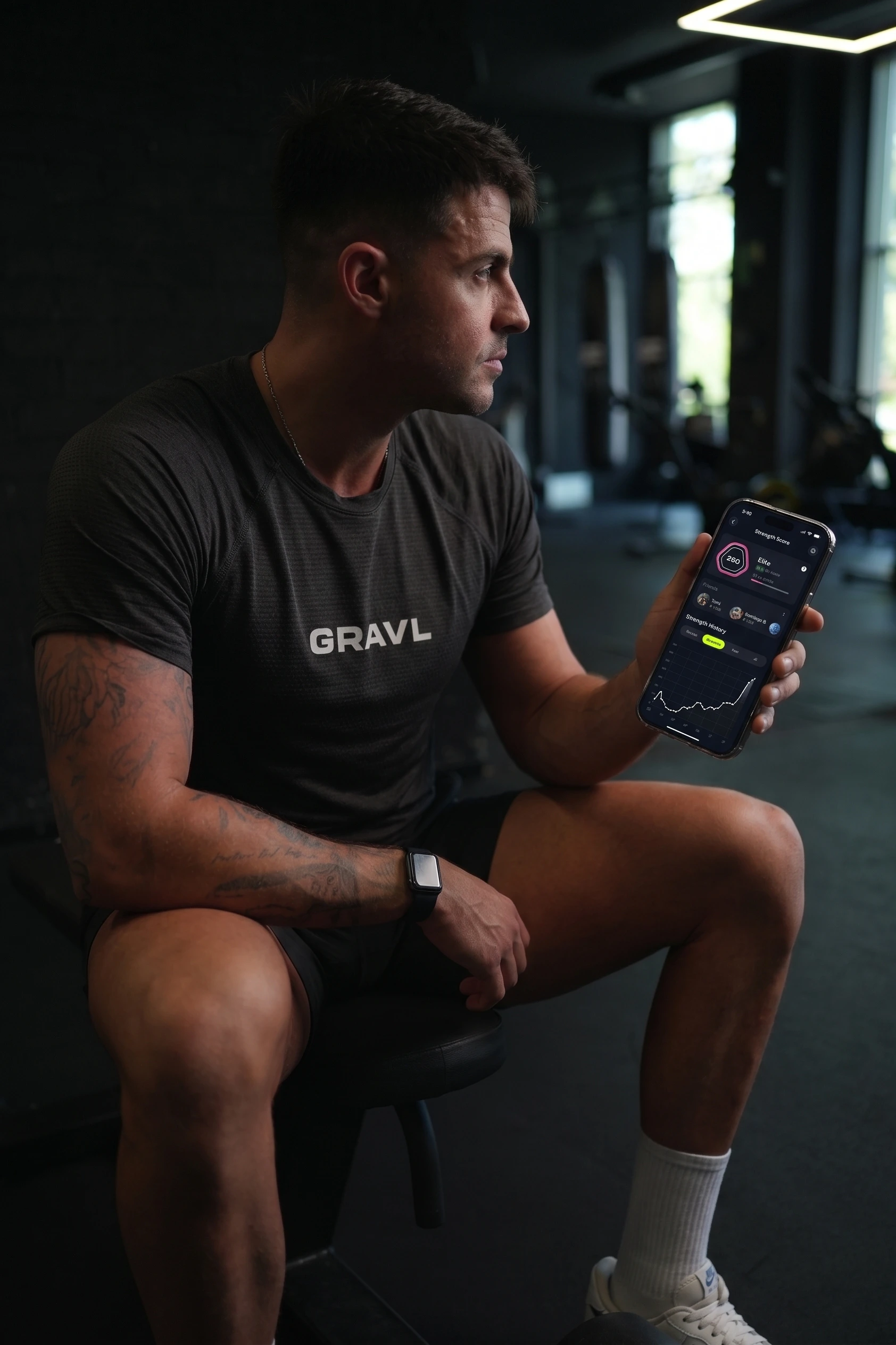
Gravl is designed so you can open the app, see today's workout, and start lifting. But under that simplicity there's a lot of depth: gestures, AI tools, and automatic behaviors that most people never stumble into on their own.
Here are ten features that longtime users tell us they wish they'd found sooner, roughly in order of how much they'll change the way you train.
1. Build your own custom split
Gravl's generated workouts fit most people, but if you've been training for a while you probably have opinions about how your week should look. The custom split builder lets you design it yourself: name your split, choose how many workouts it has (anywhere from 1 to 7), and then define each day.
Here's the part people miss: a day doesn't have to be a fixed workout. For each slot you can either pick one of your saved workouts or just tell Gravl which muscles to hit (say, chest and triceps), and Gravl generates the actual exercises for that day based on your equipment, history, and progression. You can mix both styles in one split: your favorite bench day on Monday, an auto-generated pull day on Wednesday. If you need a workout that doesn't exist yet, you can build it right inside the wizard without leaving.
Flip on "Set as my active split" at the end and Gravl will suggest those workouts, in order, whenever you train.
Where to find it: Workout Settings → Split → Create a Custom Split (or Library → My Splits → +)
2. Tell Gravl what to prioritize, and what to leave alone
Let's say your bench is lagging, or your shoulder is cranky and overhead pressing is off the menu for a month. You don't need to edit every workout by hand. That's what Focused Muscles and Excluded Muscles are for.
Pick up to two muscles to focus on and Gravl will bias your generated workouts toward them. Pick up to four to exclude and they simply stop showing up. No swapping exercises every session, no explaining to the app that your knee still isn't ready. It's the fastest way to make the whole split adapt around priorities, soreness, or an injury, and it takes about ten seconds to set.
When things change (the shoulder heals, the bench catches up), flip the settings back and your workouts return to normal.
Where to find it: Workout Settings → Focused Muscles / Excluded Muscles
3. Create a custom exercise by typing its name. AI does the rest
Gravl's exercise library is big, but every gym has that one oddball machine or that variation you picked up from a coach. When you add a custom exercise, you get three options, and two of them do the work for you.
Fill with AI is the quick one: type the exercise name, and that's it. AI fills in the target muscle, secondary muscles, category, movement type, and even a written description. What used to be a form-filling chore takes one text field.
The other option is even better if the exercise came from your feed: Import from social media. Paste an Instagram, TikTok, or YouTube link and Gravl pulls the video, saves it as the exercise's demo clip, grabs the thumbnail as its image, and works out the exercise details from the video itself. The move you saw on your feed this morning can be a fully-formed exercise in your library by tonight, demo video included.
Where to find it: Any Add Exercise button → Fill with AI or Import from social media
4. Add gym equipment by taking a photo of it
Gravl's weight suggestions are only as good as its picture of your gym. If your gym has a machine Gravl doesn't know, you can add it, and you don't have to type out a spec sheet to do it.
Tap Import from photo, point your camera at the machine, and AI identifies it: name, category, weight unit, starting weight, and the increments its stack actually moves in. The whole form fills itself in while the screen glows, and you just review and save. From then on, every suggestion Gravl makes for that machine matches weights that actually exist on it.
This is one of those features that sounds small until you've done it once. Then you find yourself walking around the gym photographing machines.
Where to find it: Gym Profile → Equipment → Add Equipment → Import from photo
5. Scan a weight stack so suggestions match your machine exactly
Ever had an app tell you to load 47.5 on a machine that jumps 50 → 60 → 70? Gravl solves this with increments (the jumps a machine's stack allows), and there's an AI shortcut for setting them up.
During a workout, tap the Increments pill under the exercise and choose Scan from photo. Photograph the weight-stack label and AI reads the numbers straight off it. It even handles machines with mixed spacing, like small 2.5 kg jumps at the bottom of the stack and bigger 10 kg jumps at the top, as separate ranges. Once it's set, every weight Gravl suggests for that machine snaps to a pin that actually exists.
Set it up once per machine and never think about it again.
Where to find it: During a workout → Increments pill on any machine exercise → Scan from photo
6. Share a workout from Instagram or TikTok straight into Gravl
Found a workout you want to try in a reel, a TikTok, an article, or a coach's PDF? You don't have to transcribe it. Use your phone's share sheet (Share with Gravl) and AI reads the content and turns it into a real, structured workout split in your library: exercises, sets, and days, ready to run.
It works with pasted links, too, and even photos or PDFs of a program. This is the feature to show your friend who screenshots workouts and never does them.
(AI workout import is a Gravl Pro feature.)
Where to find it: Your phone's share sheet from any app, or Library → My Splits → + → Import
7. Swipe an exercise to replace it
The leg press is taken. It's going to be taken for a while. Instead of digging through menus, swipe the exercise row in your workout and hit Replace. Gravl offers alternatives that hit the same muscles with the equipment you have.
Gravl shows a quick animated hint the first time you're in the right spot, but if you missed it: it's a swipe, and it's the fastest way to route around a crowded gym without wrecking your session plan.
Where to find it: Swipe any exercise row in your active workout
8. Swipe a set to add a dropset, with the math done for you
Sets have a hidden gesture too. Swipe a set right and you get a Dropset action; swipe left to delete it.
The dropset swipe is more than a shortcut. Gravl calculates the drop weights for you based on the set you just did, and rounds them to weights you can actually load, using your gym's plates and machine increments. No mid-set math with a pump. Swipe, rack the plates it tells you to, and keep going.
Where to find it: Swipe any set row right (dropset) or left (delete)
9. Log sets from your lock screen
During a workout, Gravl runs a Live Activity on your lock screen and in the Dynamic Island. Here's the part almost nobody realizes: the buttons work.
You can log your set right from the lock screen, rate how hard it felt (Easy / Medium / Hard), and add or subtract rest time, all without unlocking your phone or opening the app. Between sets, your phone can stay face-up on the bench: glance at the rest countdown and your next set's target, tap once when you're done. It's the closest thing to hands-free logging without a watch.
Where to find it: Automatic during any workout (iPhone lock screen / Dynamic Island)
10. Download exercise videos for offline use
Gym basements and cell reception are natural enemies. If exercise demo videos load slowly (or not at all) where you train, you can download them in advance.
Head to Settings → Download videos, pick the exercise categories you care about, and Gravl caches those videos on your phone so instructions load instantly, no signal required. It shows you exactly how much space each category takes before you commit, warns you before downloading over cellular data, and lets you delete everything with one tap when you want the storage back.
Where to find it: Profile → Settings → Download videos
The best features are the ones you actually use
Most of these take under a minute to set up and then quietly make every workout after that a little smoother. If only one sticks, make it the gym setup pair: equipment from a photo (#4) and weight-stack scanning (#5), because everything else in Gravl gets smarter once the app knows exactly what your gym can load.
Found a hidden gem we didn't list? Tell us at support@gravl.ai. The next post writes itself.
Ten features, one app. See how far your training goes when the tooling keeps up.
Try Gravl free