

Not finding the perfect muscle split among the Gravl Splits?
Why not create your own?
Creating a custom split
- Tap Library
- Tap "+" in the upper right corner
- On the menu sheet, tap Custom Split to build one from scratch, or AI Import to pull workouts in from a link, PDF, or photo. When the source holds more than one workout, Gravl also builds a split out of them.
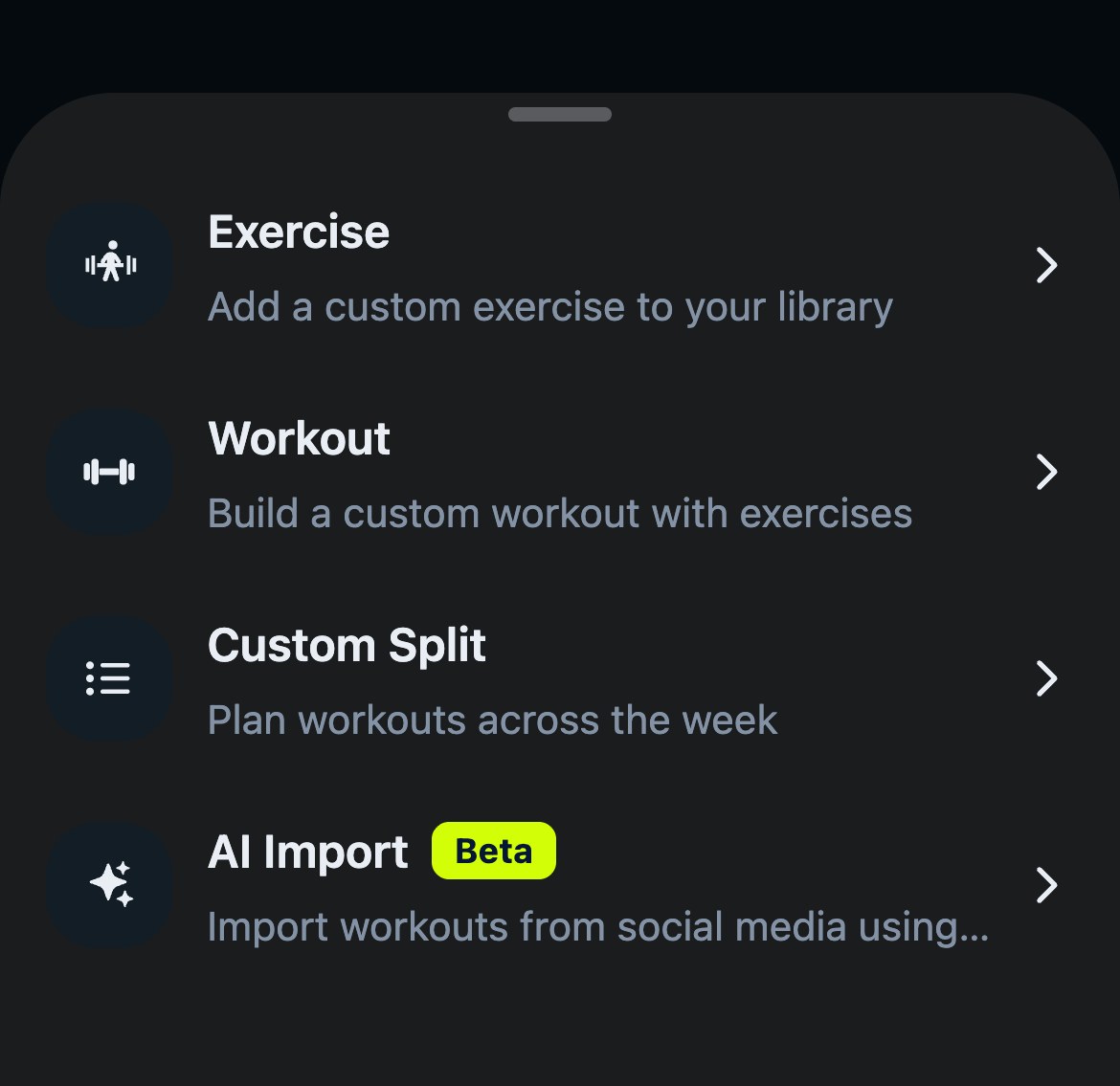
The Custom Split wizard walks you through it step by step:
-
Name it - type a name for your split, up to 50 characters. Continue stays disabled until you enter one.
-
Count it - choose how many workouts are in your split. Don't overthink it, you can add or remove workouts later.
-
Build each workout - for every workout, choose between:
- Favorite Workout: reuse a session you've saved as a favorite, or tap Create a new workout to build one on the spot.
- Muscle Groups: pick the muscles and let Gravl build the workout.
-
Confirm - review the summary. Set as my active split is on by default, so turn it off if you only want to save the split for later, then tap Create split. Done!
You'll find all your splits in Library: tap the Splits pill, then the Custom pill.
Example: creating a 3-day split
If you want to create a 3-day split consisting of:
- Chest / Biceps / Forearms / Rectus
- Back / Trapezius / Triceps
- Quads / Hamstrings / Calves / Shoulders
Follow these steps:
- Open Library, tap + and select Custom Split
- Name your split
- Set the number of workouts to 3
- For Workout 1 of 3, tap Muscle Groups, select Chest, Biceps, Forearms, and Rectus, then tap Continue
- Repeat for the remaining two workouts
- On the Summary screen, tap Create split
Import a split with AI
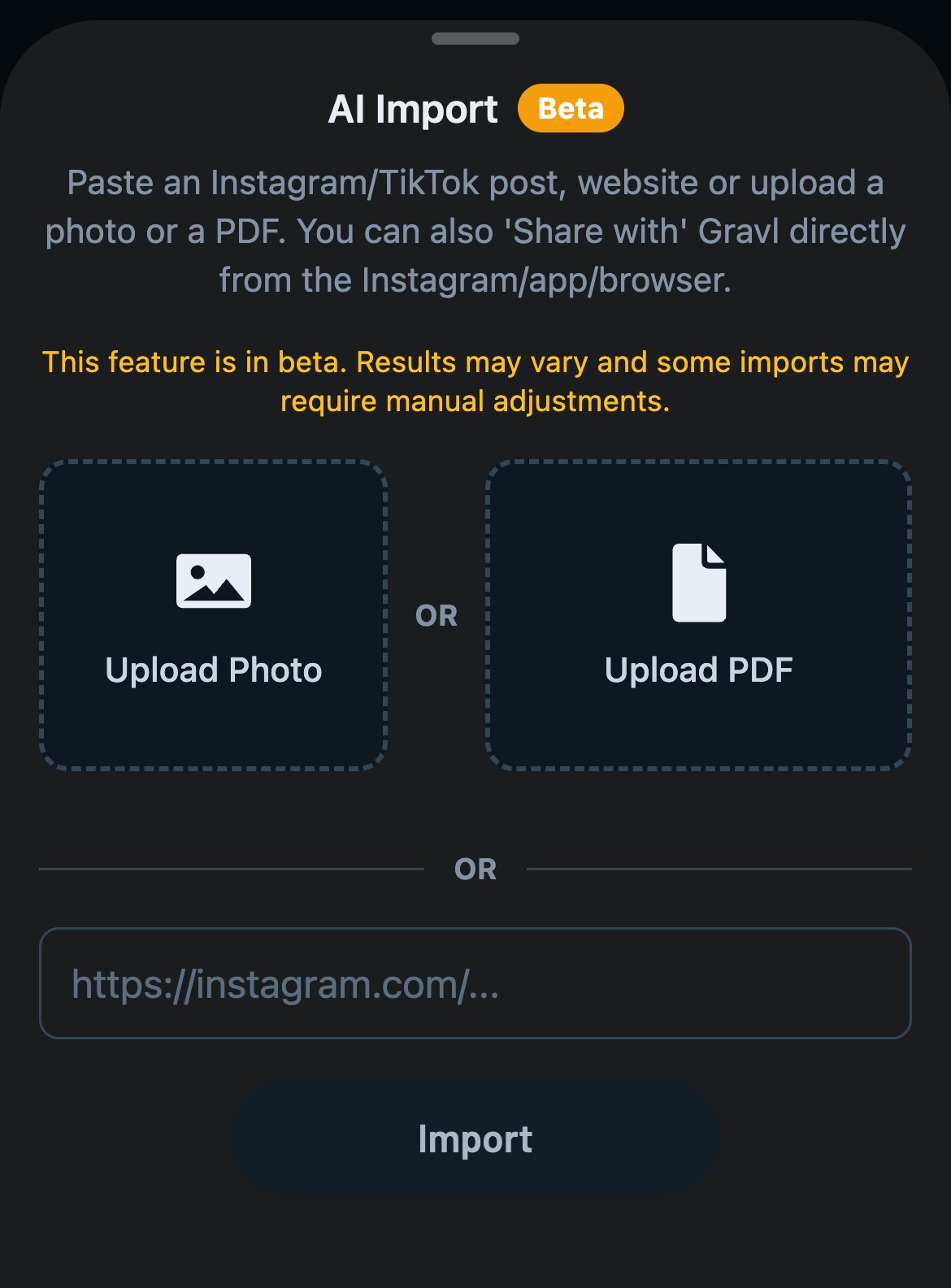
Found a program on Instagram or TikTok, got a PDF from your coach, or a photo of the gym's whiteboard routine? Choose AI Import on the same menu. It needs a Gravl subscription once you've used your free workouts. Then:
- Take a photo, choose one from your library, upload a PDF, or paste a link.
- For a link, paste it and tap Import. For a photo or a PDF, the upload starts as soon as you pick the file. Either way you'll get notified when your workouts are ready in the Library.
Access custom splits from your workout settings
You can also start a Custom Split from your workout settings:
- On the Train tab, tap the sliders icon in the top right
- Tap Split
- Tap Create a Custom Split
If your custom split is your active split and needs more time than your default workout duration, the Split screen warns you and shows Need a longer workout?. Tap Change duration, or Gravl may skip some muscle groups.