

Some of the best gyms have the worst reception. If exercise videos take forever to load mid-workout (or don't load at all), download them ahead of time and they'll play instantly - even with your phone in airplane mode.
Download your videos
- Go to Profile and tap App preferences.
- Tap Download videos.
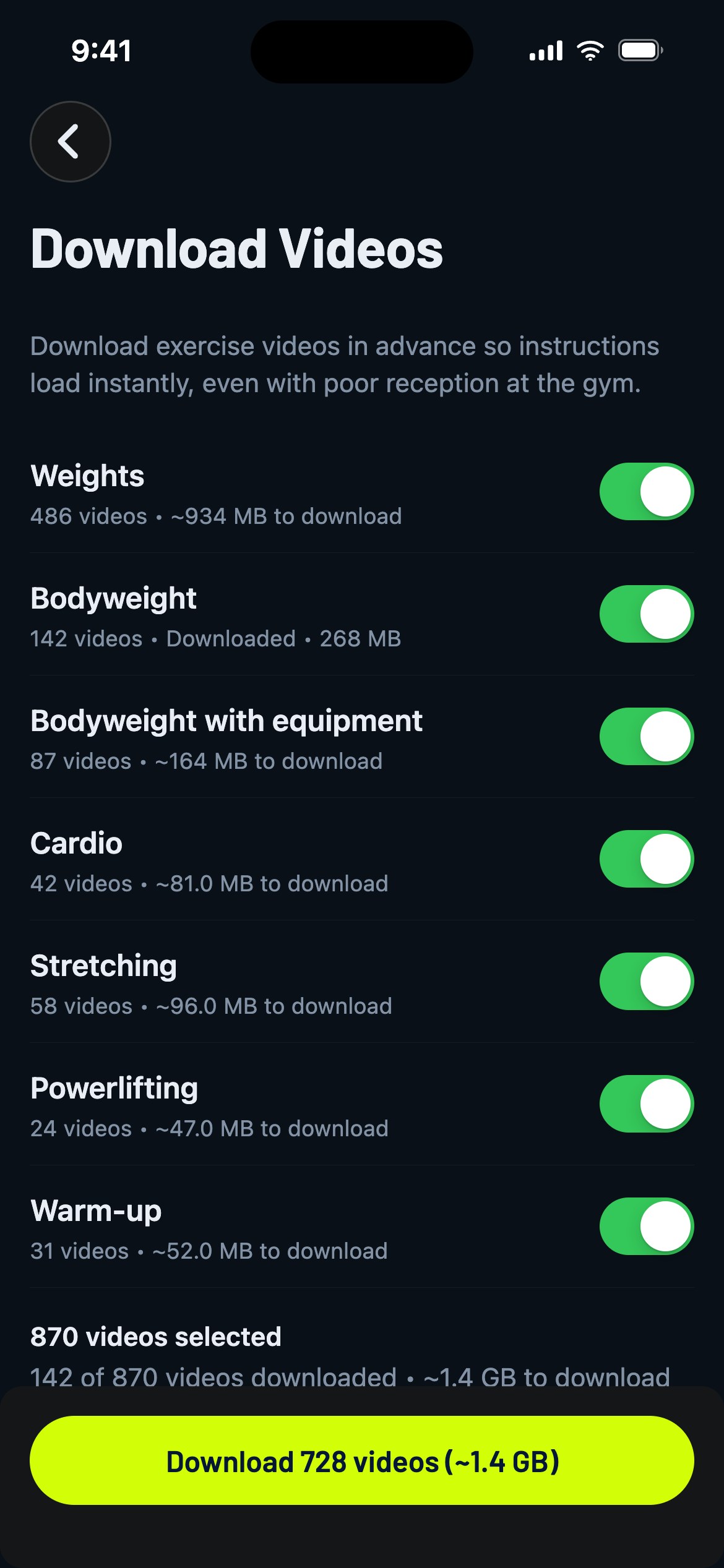
- Toggle the exercise categories you want - Weights, Bodyweight, Cardio, Stretching and so on. Each one shows how many videos it has and how much space it needs, so no surprises.
- Tap the Download button at the bottom. It tells you exactly how many videos and how big the download is before you commit.
You'll see the progress as it goes, and you can cancel anytime. If a few videos fail (spotty connection happens), just tap download again to retry the missing ones.
Gravl Tip:
Do this once on your home Wi-Fi and forget about it. If you start a download on mobile data, Gravl will warn you first - the full library can be over 1 GB, and your data plan deserves better.
Free up space
Need the storage back? On the same screen, tap the ... button in the top right and choose Delete downloads - it shows exactly how much space you'll recover. Your videos are gone from the phone but not from Gravl: you can download them again whenever you want.
Good to know
- Downloads only work while you're online (obviously), so plan ahead for that remote-cabin training week.
- Custom exercises you created from a YouTube link can't be downloaded: those play in an embed and always need a connection. Instagram and TikTok imports are rehosted by Gravl, so they download like any other video.
- Already-downloaded categories show a Downloaded label with their size, so you always know what's on your phone.