

You can change the colors of the whole Gravl app. Pick a light or dark look, let Gravl follow your phone, or choose one of Gravl's color themes.
To change the theme, go to the Profile tab, tap App preferences, then tap Theme.
Theme options
- Light: always use the light theme.
- Original: always use the dark theme. This is Gravl's default dark look.
- System: Gravl follows your phone. It uses a light theme when your phone is in light mode and a dark theme when it is in dark mode.
- Custom: choose one of Gravl's color themes.
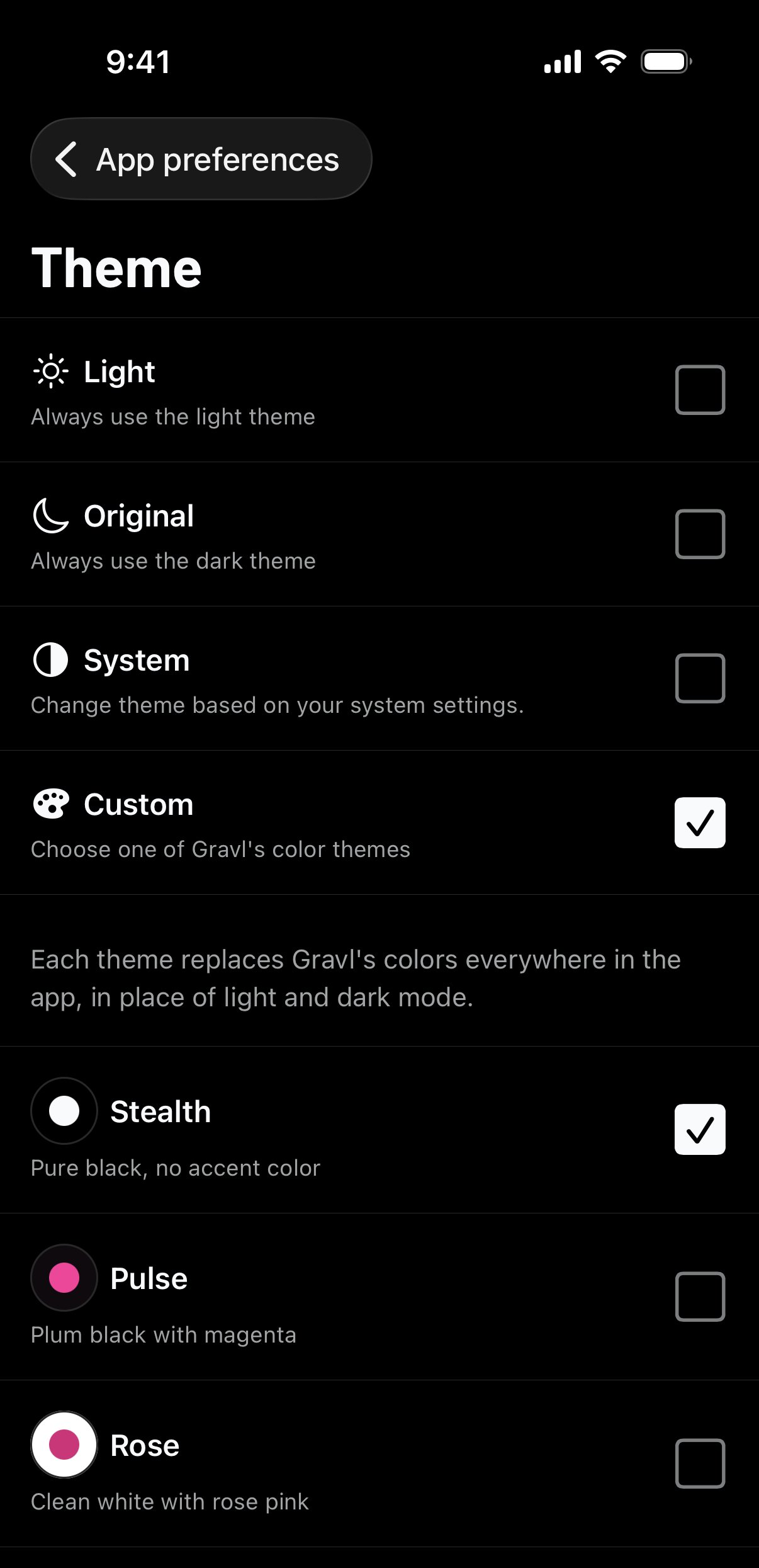
Color themes
When you select Custom, pick one of these themes:
- Stealth: pure black, with no accent color.
- Pulse: plum black with magenta.
- Rose: clean white with rose pink.
Each theme replaces Gravl's colors everywhere in the app, in place of light and dark mode.
Use different themes for light and dark mode
When you select System, two more lists appear:
- Light theme: used when your phone is in light mode. Choose Light or Rose.
- Dark theme: used when your phone is in dark mode. Choose Original, Stealth or Pulse.
Change the accent color of the light theme
When you use the Light theme, you can also set the Light theme accent. Gravl uses this color for charts and highlights. Choose Black, Blue, Violet, Rose, Emerald or Orange.
The New themes sheet
Gravl can show a New themes sheet to introduce the themes. Tap a theme to preview it, then tap Keep this theme. If you close the sheet without tapping Keep this theme, Gravl goes back to your previous look. You can always change it later in Theme.
Good to know
- Your theme is saved on your phone, not in your Gravl account. If you use Gravl on another phone or reinstall the app, choose your theme again.
- You can also change the app icon in App preferences → App icon.
Gravl Tip:
Train in a dark gym? Try Stealth. Its pure black background is easy on the eyes between sets.