

Workout Focus blocks the apps you choose while a workout is in progress. Blocking starts when you start a workout. It stops when you finish or cancel the workout.
- iPhone: Gravl uses Apple Screen Time. You can block apps, app categories and websites.
- Android: Gravl uses usage access and a full-screen overlay. You can block apps.
Set up Workout Focus
Go to the Profile tab, tap Training, then tap Workout Focus. Tap Set up Workout Focus and follow the three steps.
- When should apps be blocked? Pick a blocking mode, then tap Continue:
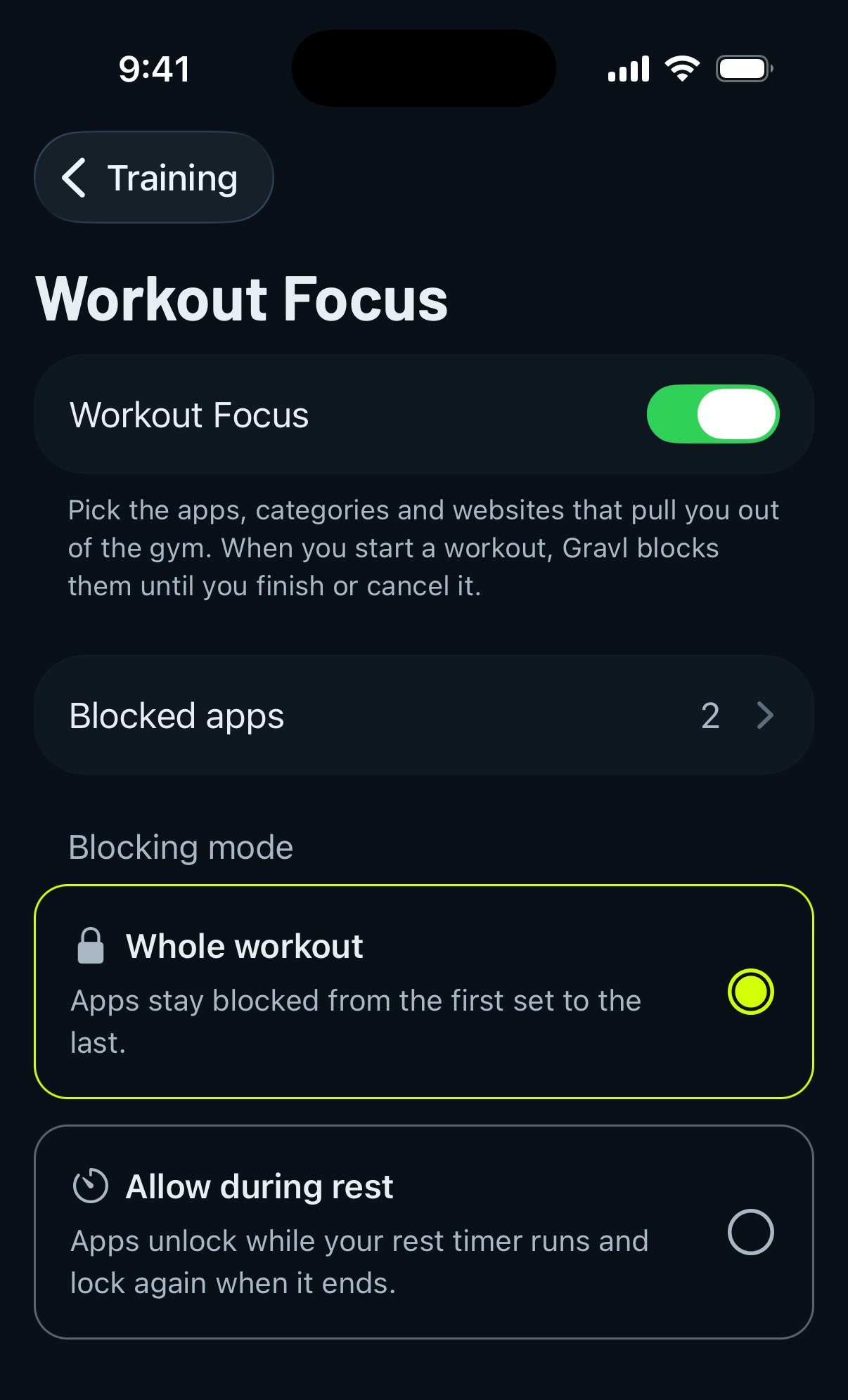
- Whole workout: apps stay blocked from the first set to the last.
- Allow during rest: apps unlock while your rest timer runs and lock again when it ends.
- Give Gravl access:
- iPhone: tap Allow Screen Time, then tap Continue in the Screen Time prompt.
- Android: tap Allow access. Gravl asks for two permissions, one after the other: Allow usage access and Allow display over other apps. Each one opens an Android settings screen. Turn Gravl on there, then go back to Gravl.
- Choose apps to block: tap Continue, select the apps, then tap Done. You must select at least one app.
When you see You're all set!, tap Got it. Your next workout starts with those apps blocked.
What a blocked app shows
If you open a blocked app during a workout, Gravl covers it with a screen that says the app is blocked by Gravl, a short reminder and your next exercise.
Tap Back to training to leave the blocked app:
- On Android, Gravl opens.
- On iPhone, the blocked app closes and you get a Back to training notification. Tap it to go back to your workout.
On Android, you also see a Workout Focus is on notification while apps are blocked. This is normal.
Change or turn off Workout Focus
Go to Profile → Training → Workout Focus. The row shows the current status: Off, Setup required, Ready or Active.
On the Workout Focus screen you can:
- Use the Workout Focus switch to turn blocking on or off.
- Tap Blocked apps to change the apps you block.
- Change the Blocking mode to Whole workout or Allow during rest.
There is no option to unlock an app for a few minutes. If you need your phone between sets, choose Allow during rest.
Workout Focus settings are saved on your phone, not in your Gravl account. After you change phones or reinstall Gravl, set it up again.
Troubleshooting
The status says Setup required. A permission is missing or no app is selected. Open Workout Focus and complete the steps again.
- On iPhone, if Screen Time is off for Gravl, you see Turn on Screen Time for Gravl. Tap Open Settings and follow the steps on screen.
- On Android, you see Allow access for Gravl. Usage access and display over other apps must both be on for Gravl.
Gravl checks these permissions each time you open it. If you turn one off in your phone settings, the status goes back to Setup required.
Apps are not blocked during a workout. Check that:
- The Workout Focus switch is on and the status is Ready or Active.
- At least one app is selected in Blocked apps.
- A workout is in progress.
- If you use Allow during rest, the rest timer is not running.
You can't find an app in the list. You can't block Gravl itself. On Android, the list only shows apps that have an icon on your home screen or in the app drawer.
Gravl Tip:
Start with the one or two apps you open most between sets. You can add more at any time from Blocked apps.
Still not working?
If the status is Ready, a workout is in progress and a blocked app still opens, contact us from Support. Tell us your phone model, OS version, Gravl version, your blocking mode and the app that still opens. A short screen recording helps a lot.