
Da una semplice palestra di casa a un centro fitness super attrezzato (o magari un mix dei due?), Gravl ti permette di creare facilmente profili che corrispondono alla tua attrezzatura. Così riceverai sempre allenamenti perfettamente su misura per il posto in cui ti alleni.
Pronto a iniziare? Configuriamo tutto!
Crea un profilo palestra
-
Tocca il nome della palestra in alto a sinistra nella scheda Allenamento.
-
Tocca "Aggiungi profilo palestra" in fondo al menu laterale.
-
Scegli tra Palestra grande, Palestra piccola e Palestra in garage: se scegli Palestra grande o Palestra piccola, arriverai alla schermata "Dove ti alleni?". Gravl individua da solo la tua zona approssimativa, così le palestre vicine compaiono per prime appena inizi a digitare, e non chiede mai il permesso di usare la posizione del tuo dispositivo.
-
Ecco due opzioni per continuare:
- Cerca la tua palestra e selezionala dall'elenco. Per una palestra normale vedi un'anteprima con nome, indirizzo e mappa, poi tocca "Seleziona" per continuare. Per una palestra verificata, invece, Gravl apre la pagina della palestra: tocca "Unisciti" e il profilo viene creato subito, con l'attrezzatura di quella palestra già configurata.
- Tocca "Salta" e inserisci il nome che vuoi dare alla palestra.
- Tocca "Crea".
Consiglio di Gravl:
Se hai scelto l'opzione 2, puoi comunque cercare la tua palestra dopo aver toccato "Crea". Nella schermata successiva, tocca "Aggiungi" e seleziona una palestra dall'elenco.
Modifica l'attrezzatura disponibile
Ora che hai creato un profilo palestra, puoi assegnargli un colore. In Immagine puoi anche scegliere Scegli foto, Logo palestra (quando il profilo è collegato a una palestra) o Iniziale. Ma soprattutto: dicci quale attrezzatura è disponibile, così la nostra IA può fare la sua magia e creare allenamenti composti solo da esercizi che puoi fare. Ecco come:
- Tocca "Attrezzatura".
- Seleziona l'attrezzatura disponibile spuntando o togliendo la spunta dalle caselle.
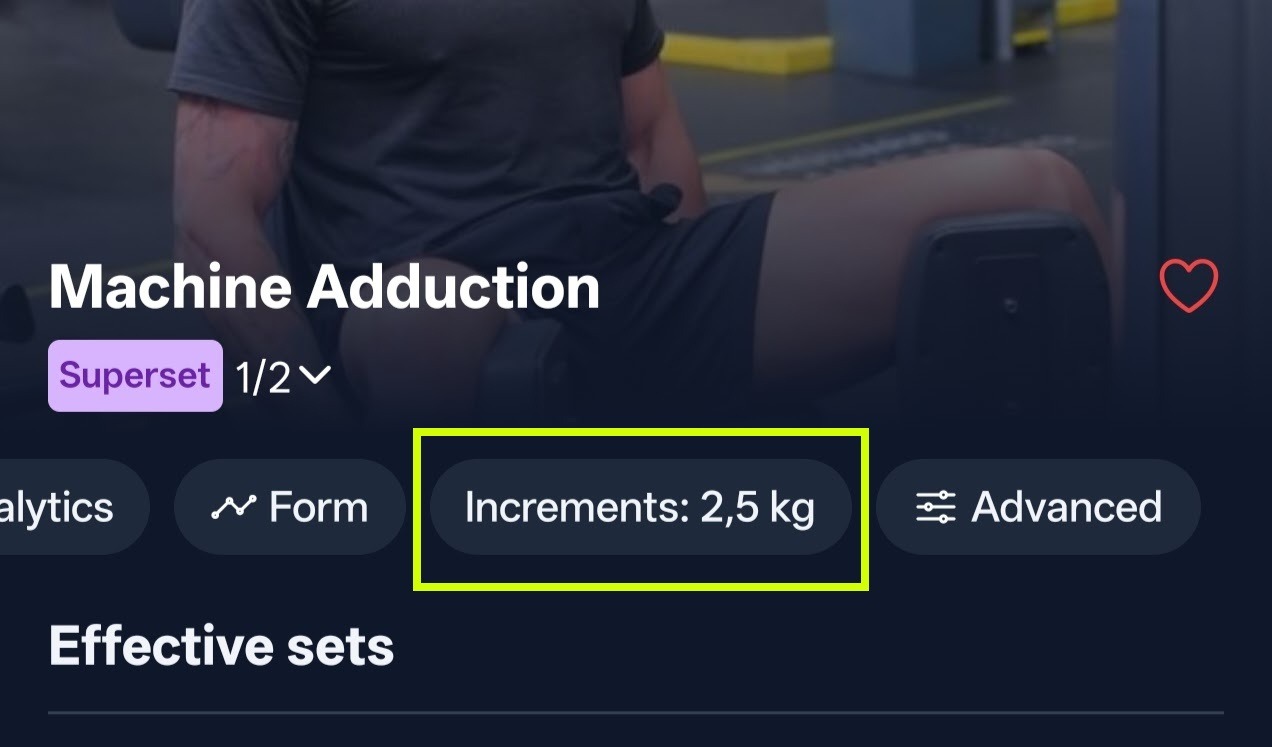
- Modifica unità, incrementi, dischi disponibili, bilancieri, manubri, ecc.
- Aggiungi pesi personalizzati per manubri e kettlebell, se necessario.
- Manca del tutto una macchina? Tocca "Aggiungi" nella schermata Attrezzatura per crearla tu: dalle un nome, una categoria e i suoi pesi. Puoi anche toccare "Importa da foto" e lasciare che Gravl legga il pacco pesi da una foto.
L'unità si imposta per ogni attrezzo, bilancieri e dischi compresi. Apri l'attrezzo, passa tra kg e lb con le schede Unità in alto, poi tocca "Salva". Tutto ciò che non modifichi usa l'Unità di peso della palestra e, solo in mancanza di questa, l'unità delle impostazioni del tuo profilo.
Ti alleni all'estero o in una palestra dove le macchine sono indicate in modo diverso? Quando modifichi un profilo palestra, puoi anche impostare un'Unità di peso solo per quella palestra, cioè l'unità in cui sono indicate le sue macchine. Basta calcoli a mente tra kg e lb a metà serie.
Consiglio di Gravl:
Puoi anche cambiare unità al volo. Dai un'occhiata alla schermata dell'esercizio.
Palestre verificate
Alcune palestre nel nostro database sono verificate: hanno foto, una mappa e l'attrezzatura già configurata per te. Se selezioni una palestra verificata, puoi saltare del tutto la configurazione dell'attrezzatura: sappiamo già cosa c'è in sala. Dato che l'elenco dell'attrezzatura è gestito da Gravl, nelle palestre verificate non può essere modificato manualmente.
Record e statistiche per palestra
I pesi possono sembrare diversi da una palestra all'altra: una macchina della tua palestra di casa non carica esattamente come quella della palestra dell'hotel. Per questo Gravl tiene traccia dei tuoi sollevamenti per palestra:
- Nelle Analisi di un esercizio, usa il selettore della palestra in alto per passare da una palestra all'altra e vedere i numeri che hai fatto in ciascuna. Compare solo negli esercizi alle macchine: macchine con pacco pesi, macchine ai cavi e macchine a dischi. Con i pesi liberi, 100 kg su un bilanciere sono 100 kg ovunque, quindi non c'è nulla da cambiare.
- Nella schermata Massimale di un esercizio alle macchine, puoi toccare il valore per impostare un 1RM personalizzato che vale solo per la palestra in cui ti trovi. Perfetto per quella macchina ai cavi che sembra sospettosamente pesante. I pesi liberi funzionano diversamente: 100 kg su un bilanciere sono 100 kg ovunque, quindi quegli esercizi mantengono un unico massimale su tutte le tue palestre e non mostrano il selettore della palestra.
Passa da un profilo all'altro
Ti servono più profili per palestre o configurazioni diverse? Ripeti semplicemente i passaggi sopra. Passare dall'uno all'altro è facilissimo:
- Tocca il nome della palestra in alto a sinistra nella scheda Allenamento.
- Seleziona il profilo che vuoi usare.
Un'avvertenza: non puoi cambiare profilo mentre è in corso un allenamento. Gravl mostra invece un avviso Allenamento in corso. Prima completa o annulla l'allenamento.
Consiglio di Gravl:
Se in seguito vuoi modificare l'attrezzatura o il nome di un profilo, apri il menu laterale, tocca i tre puntini accanto al profilo che vuoi modificare e seleziona "Modifica". Per una palestra verificata l'opzione si chiama invece "Visualizza" e apre la pagina della palestra, perché è Gravl a tenere aggiornato per te l'elenco dell'attrezzatura.