
Muscoli guadagnati, grasso perso: da una settimana all'altra quasi non te ne accorgi, e la bilancia da sola non ti racconta tutta la storia. Le foto sì. Scattale con costanza e lascia parlare tre mesi di lavoro.
Scatta una foto dei progressi
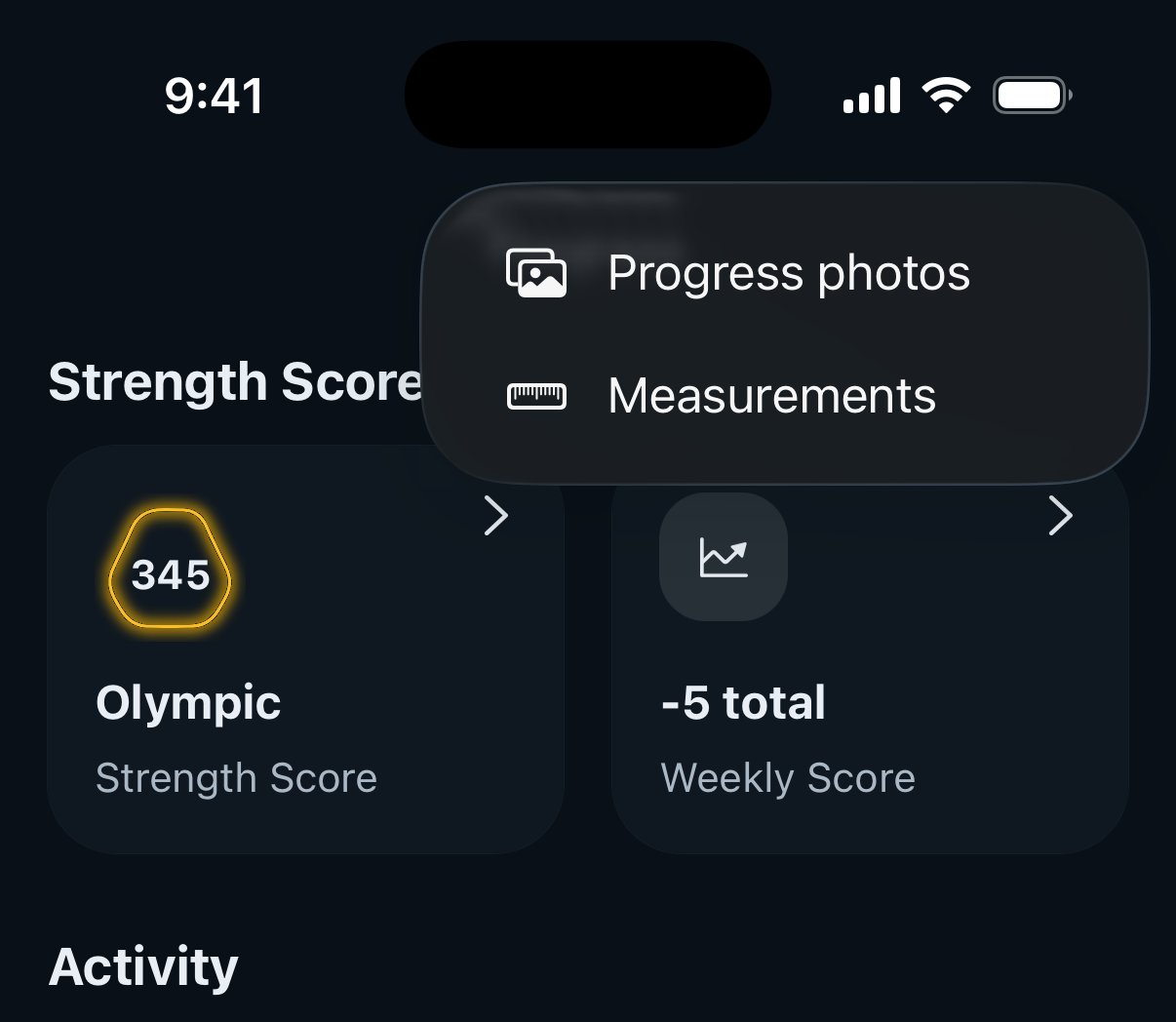
- Apri la scheda Progresso e tocca il + in alto a destra.
- Scegli Foto dei progressi.
- Scegli la posa - Frontale, Laterale o Posteriore - e usa la fotocamera o scegli una foto dalla tua galleria.
- Se lo scatto è di un giorno precedente, tocca la data in cima allo schermo e scegli quella giusta. Poi tocca Salva. Fatto.
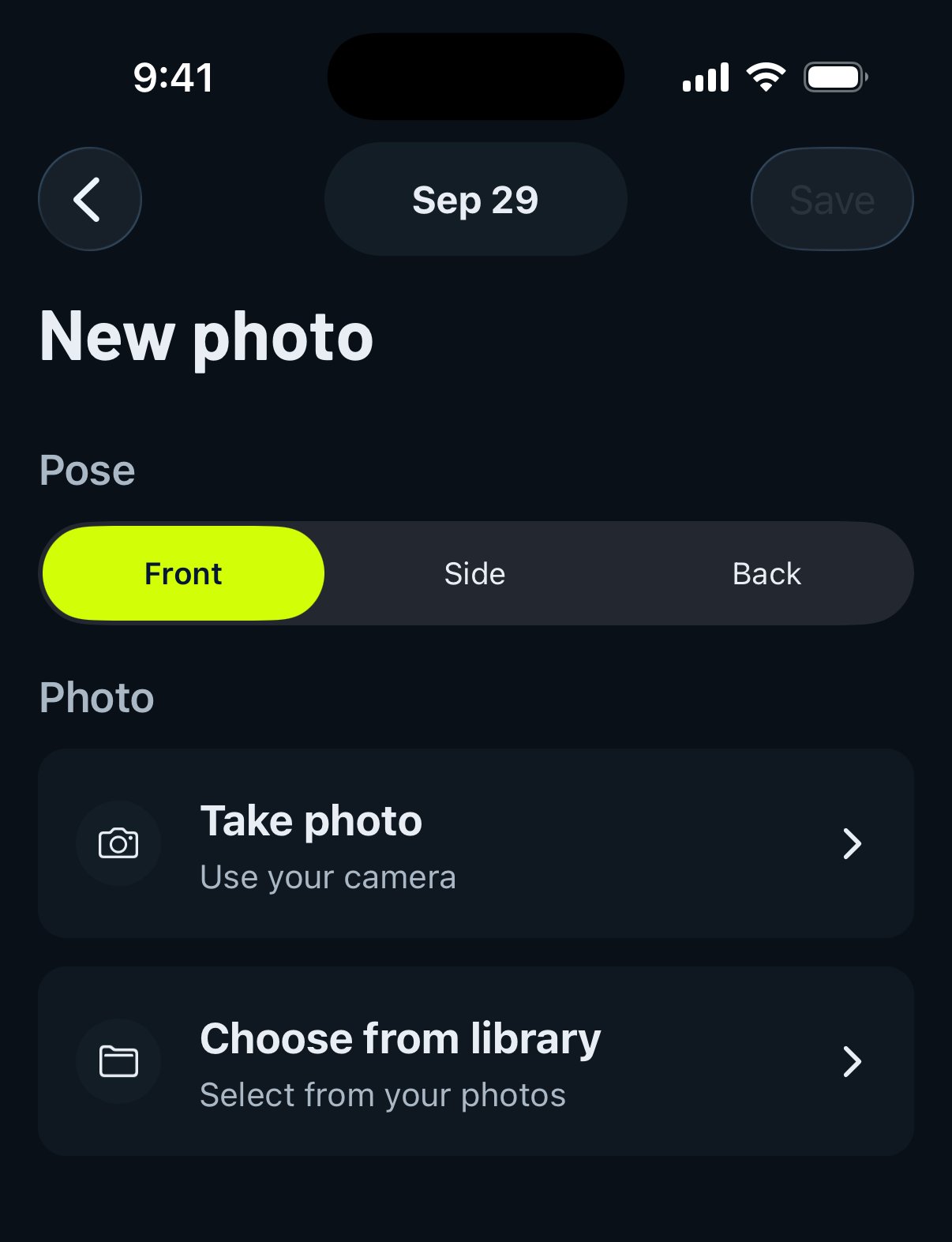
Puoi tenere una foto per posa al giorno, quindi un check-in completo sono solo tre scatti veloci. La tua galleria si trova nella sezione Corpo della scheda Progresso, con filtri per ogni posa.
Confronta prima e adesso
Qui viene il bello. Nella galleria delle Foto dei progressi, tocca Confronta:
- Seleziona la foto del prima.
- Seleziona la foto del dopo.
- Trascina il cursore a sinistra e a destra per sovrapporre una foto all'altra.
Stessa posa + stessa angolazione = la visione più chiara possibile di cosa è cambiato. Ti servono almeno 2 foto per fare un confronto (ovviamente: dagli qualche settimana).
Consiglio di Gravl:
La costanza batte la frequenza. Stesso posto, stessa luce, stesso momento della giornata (la mattina è l'ideale), stesse pose, ogni 2-4 settimane. Il tuo io futuro ti ringrazierà per la disciplina.
Buono a sapersi
- Le foto dei progressi sono private: le vedi solo tu, non compaiono mai nel tuo feed né ai tuoi amici.
- Si abbinano alla perfezione con le tue misure corporee: le foto lo mostrano, il metro lo dimostra.
- Per eliminare una foto, tieni premuta la sua miniatura nella galleria e conferma. L'eliminazione è definitiva e Gravl non permette di esportare di nuovo una foto, quindi elimina solo ciò di cui sei sicuro.