

Ci sono tre modi per aggiungere allenamenti al tuo elenco Preferiti.
Opzione 1
Nella Libreria, tocca il filtro Allenamenti. Lì trovi elencate le tue sessioni salvate. Per crearne una nuova da zero, tocca “+” in alto a destra e seleziona Allenamento.
Se non hai ancora allenamenti salvati, il filtro Allenamenti mostra Ancora nessun allenamento personalizzato con un pulsante Crea allenamento. Puoi anche crearne uno da qualsiasi punto della Libreria:
- Apri la Libreria
- Tocca “+” in alto a destra
- Seleziona Allenamento
Opzione 2
Apri un allenamento e tocca il menu … in alto a destra nella schermata dell'allenamento. Poi tocca Preferito. Si apre una finestra Salva allenamento: scrivi un Nome e tocca Salva. Il nome è obbligatorio, quindi non viene salvato nulla finché non lo inserisci.
Puoi farlo anche dopo una sessione: attiva Salva come preferito nella schermata Salva allenamento, oppure apri l'allenamento completato, tocca il menu … e scegli Salva.
Se modifichi un allenamento salvato durante una sessione, al momento del salvataggio Gravl ti chiede Aggiornare il modello?. Tocca Aggiorna modello per mantenere le modifiche per la prossima volta, oppure Mantieni originale.
Una volta salvati, i tuoi allenamenti sono sempre disponibili nella tua Libreria.
Imposta la variazione che preferisci
Assicurati di selezionare la variazione che preferisci per gli allenamenti preferiti.
Puoi farlo in:
- Allenamento > icona dei cursori in alto a destra > Modifiche agli allenamenti salvati (sotto Struttura dell'allenamento) oppure
- Libreria > Allenamenti > la scheda Modifiche agli allenamenti salvati in alto. Puoi chiudere questa scheda con la X.
Opzioni di variazione
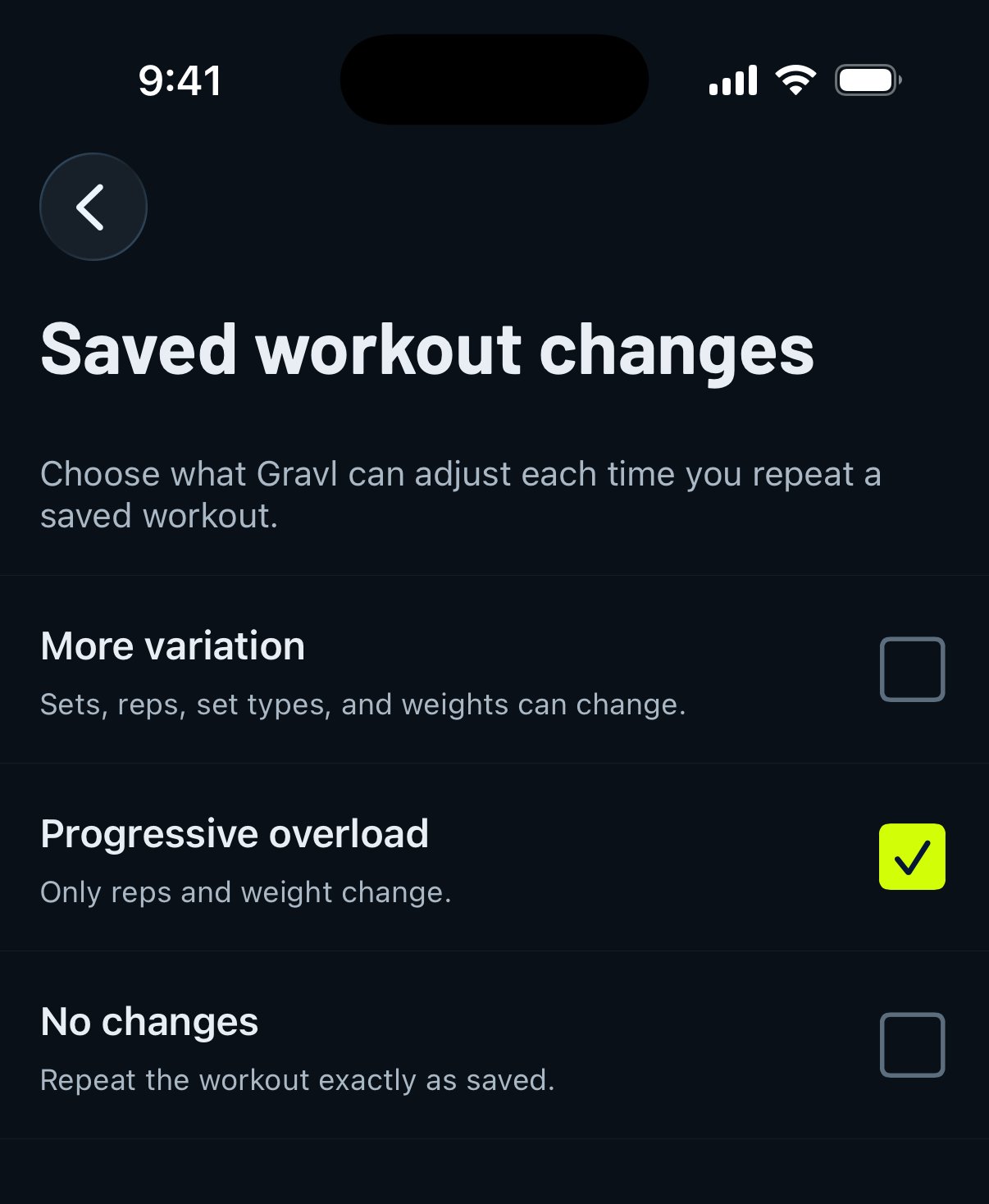
Più variazioni
Gli esercizi e il loro ordine restano gli stessi, ma il numero di serie, le ripetizioni e i tipi di serie possono variare in base alle impostazioni generali dei tuoi allenamenti.
Sovraccarico progressivo
Gli esercizi, il loro ordine e il numero di serie restano gli stessi, ma ripetizioni e pesi possono variare per applicare il sovraccarico progressivo.
Nessuna modifica
L'allenamento viene sempre generato esattamente come l'hai salvato in origine.
Consiglio di Gravl:
Puoi ripetere queste sessioni in qualsiasi momento. Puoi anche usarle quando crei una Routine Personalizzata.