

The Library tab keeps your exercises, splits and saved workouts in one list. With no filter on, the list is called Recents. Your active split and the things you used lately come first. Exercises only show here if you trained them, marked them as favorites, have a score for them or created them in the last 30 days.
Search
Tap Search your library and type a name. Results from all three types show together under Results. For creator splits, you can also search for the creator's name.
Filter with pills
The first row has three pills: Exercises, Splits and Workouts. Tap one to see only that type. More pills then appear next to it:
- Exercises: Scored (exercises that count toward your Strength Score), Favorites, New (exercises you haven't trained yet), Custom (exercises you created) and Removed. Use Muscle to pick one muscle group and Equipment to pick a type of equipment.
- Splits: For you (splits that match your level and the number of days you train each week), a pill with your level (for example Intermediate), Custom (your own splits), Gravl and Creators. Use Days/week to see only splits for a given number of training days.
- Workouts: your saved workouts, grouped as Push, Pull, Legs, Upper, Lower, Full body and Core.
The pills you select join together at the start of the row. Tap a selected pill to remove it, or tap the X to clear all filters.
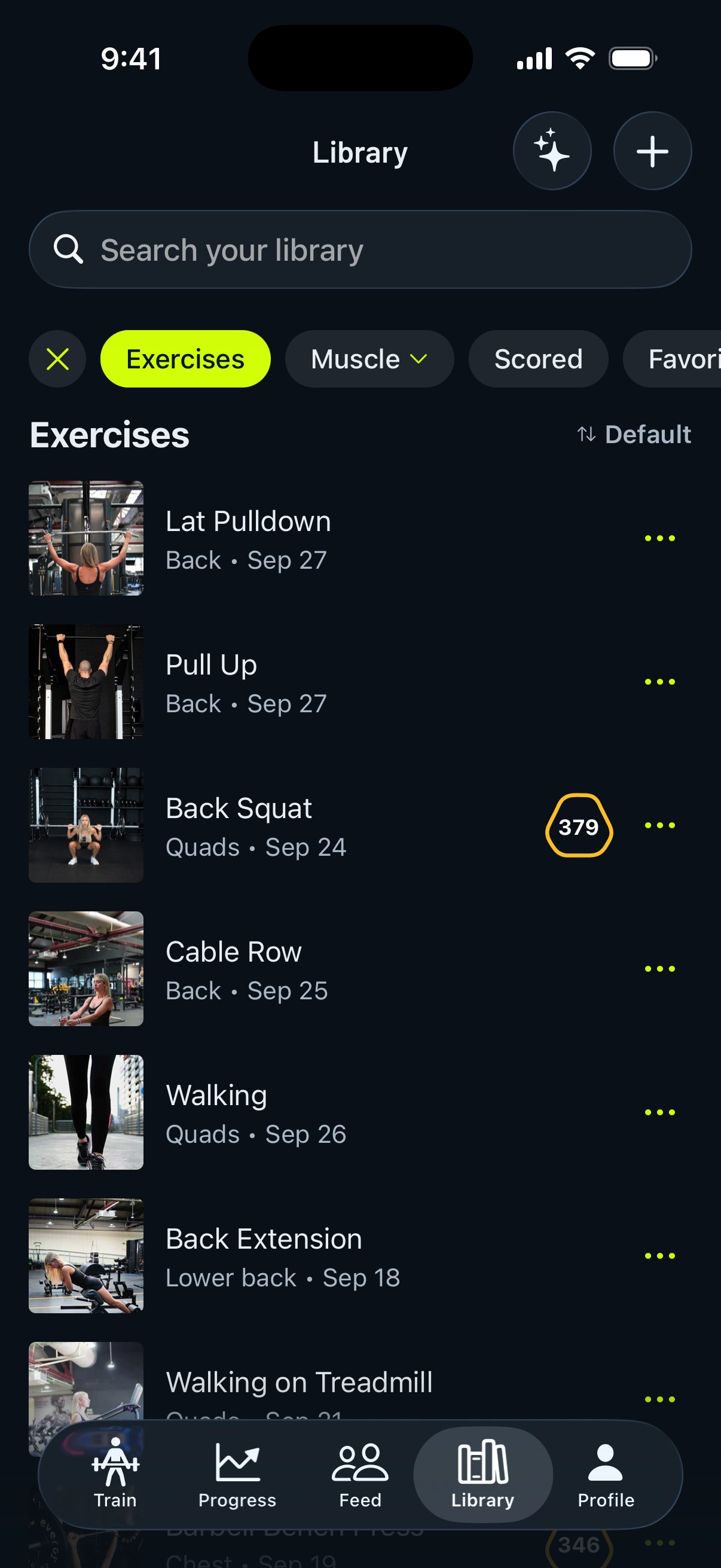
Sort the list
The sort button sits to the right of the list title. The choices depend on what you're looking at: for example Default, Name, the most recently trained first, or the oldest trained first. In Scored, you can sort by Score or by Expiring soon.
Sorting by training date hides exercises you haven't trained yet. The Library remembers your filters on your phone, and it remembers the sort for each view separately.
See when you last trained an exercise
In the Exercises view, each row shows the muscle and the day you last trained it: Today, Yesterday or a date. Exercises you haven't done show Not trained yet. If you sort by Name, rows show only the muscle. In Scored, rows show when the score expires instead.
Row actions
- Tap an exercise to open its analytics. Tap a saved workout to open it, ready to start. Tap a split to see its details.
- Tap the three dots, or long-press a row, for more options:
- Exercises: for example Recommend more often, Don't recommend again, Add to queue, Video & Instructions, Exercise History and Notes. Your own exercises also have Edit and Delete.
- Saved workouts: Start, Edit, Rename and Delete.
- Your own splits: Select, Edit and Delete.
Gravl and creator splits don't have a three-dots menu.
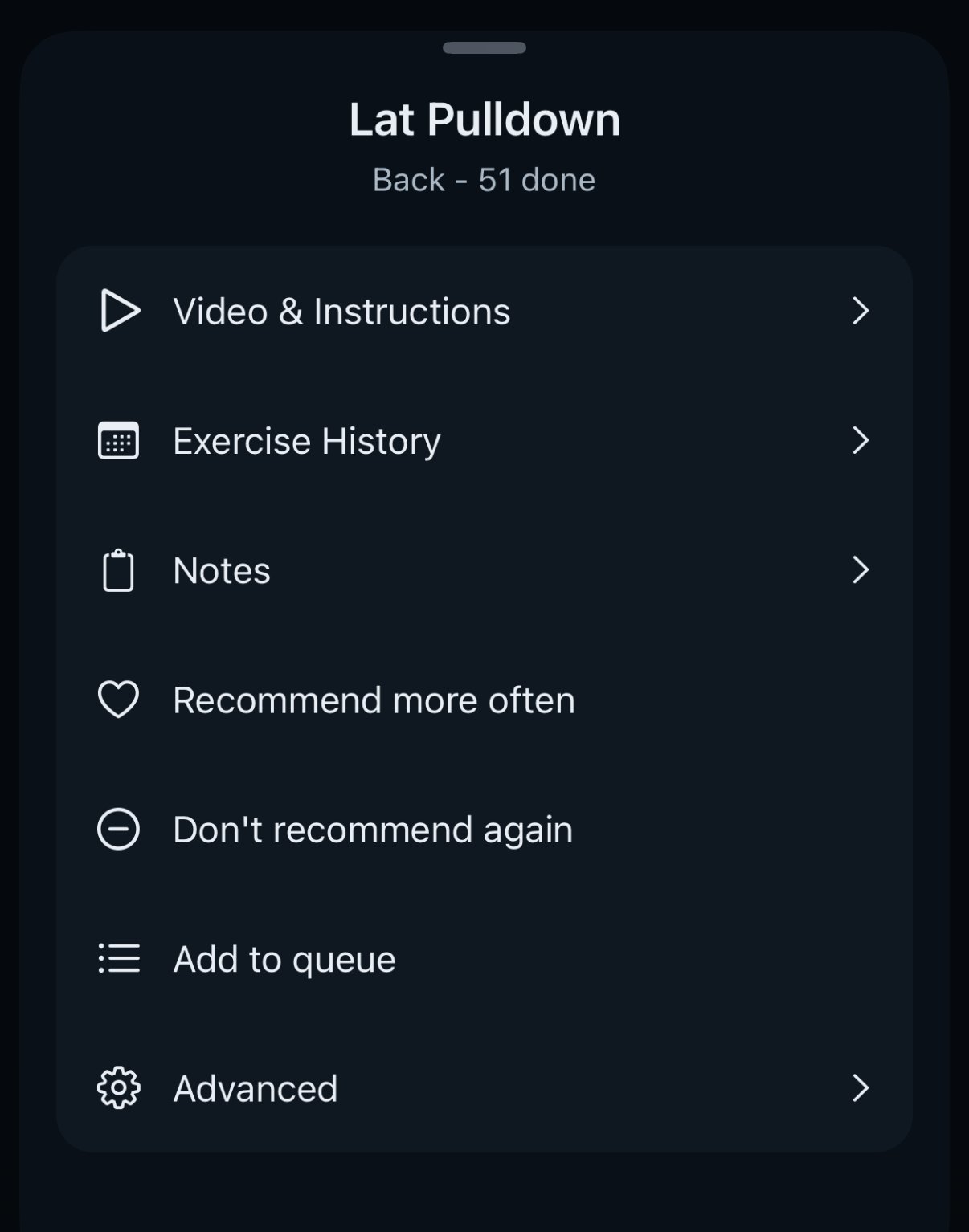
To learn more about these options, see Prioritize Your Favorite Exercises, Exclude Exercises From Your Workouts and Queued Exercises: Your Workout Wish List.
Add something new
Tap + at the top of the Library to add:
- Exercise: a custom exercise.
- Workout: a saved workout you build yourself.
- Custom Split: your own weekly split.
- AI Import: a workout imported from social media.
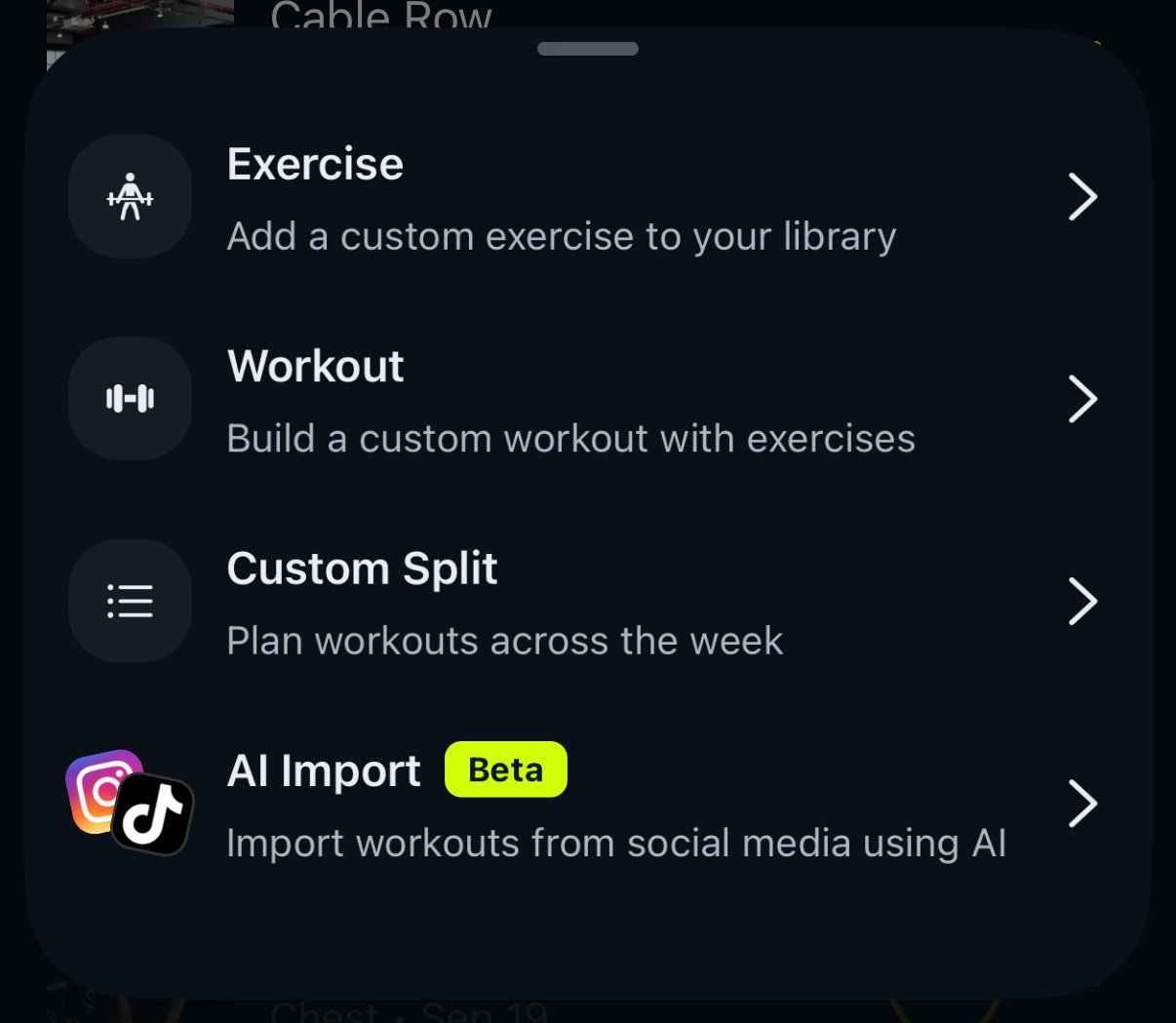
The sparkles button next to + has Help me choose a split.
Gravl Tip:
Can't find an exercise? If you told Gravl not to recommend it, the Library hides it, search results included. Tap Exercises, then Removed, and use Recommend again to bring it back.